


In digital communication, two standards reign supreme: DisplayPort and HDMI. Both are required for modern audio-visual equipment like home theater systems, gaming consoles, and PCs with displays. Aside from their physical differences, they also have their own unique functions suited for different applications.
What is HDMI?
High-Definition Multimedia Interface is what HDMI stands for. This proprietary specification aims to be a global standard for high-quality video. It has been popular since 2002 and is now the preferred interface for consoles, TVs, and Blu-ray players. The ability to carry uncompressed digital video and audio signals while maintaining high-quality output is one of its key features.
HDMI Cable Types
Here are the most common ones:
- Standard HDMI: For old consumer electronics, use standard HDMI. It lacks the high-tech features of modern devices and only supports 1080p.
- High-speed HDMI: Ideal for higher resolutions like 4K@30Hz, it supports 3D and deep color.
- Premium High-Speed HDMI: Suitable for homes with high-end home theater systems like HDR TVs since it can provide 18 Gbps.
- Ultra High-Speed HDMI: This cable provides 48 Gbps for 4K@120Hz and 8K@60Hz for incredibly sharp visuals. With Auto Low Latency Mode (ALLM) and Variable Refresh Rate (VRR) features, this cable is perfect for gaming use.
Types of HDMI Connectors
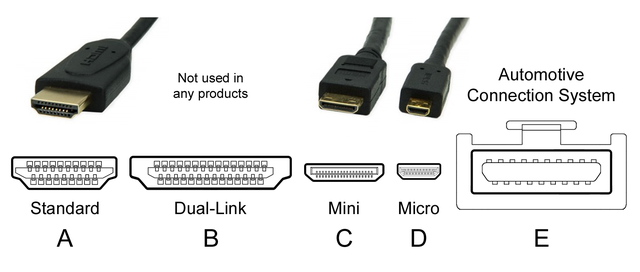
Similarly, HDMI connectors also come in different types that have different features:
- Type A: This is the most common one found in typical consumer devices.
- Type B: This is a dual-link connector used in HRD applications, though it’s almost obsolete. Type C: A small connector for tablets or cameras that are portable.
- Type D: A micro connector used in small devices like smartphones.
- Type E: A lockable, ruggedized connector for automotive applications that reduces vibration.
HDMI has seen numerous developments and modifications throughout time. The latest version, HDMI 2.1a, has significant enhancements such as 8K resolution support, enhanced audio return channel (eARC), and variable refresh rate (VRR).
HDMI Versions
| Feature | HDMI 1.0 | HDMI 1.1 | HDMI 1.2 | HDMI 1.3 | HDMI 1.4 | HDMI 2.0 | HDMI 2.1 |
|---|---|---|---|---|---|---|---|
| Release Year | 2002 | 2004 | 2005 | 2006 | 2009 | 2013 | 2017 |
| Max Resolution | 1080p @ 60 Hz | 1080p @ 60 Hz | 1080p @ 60 Hz | 1440p @ 60 Hz | 4K @ 30 Hz | 4K @ 60 Hz | 8K @ 60 Hz 4K @ 120 Hz |
| Max Data Rate | 4.95 Gbps | 4.95 Gbps | 4.95 Gbps | 10.2 Gbps | 10.2 Gbps | 18.0 Gbps | 48.0 Gbps |
| Audio Return Channel (ARC) | No | No | No | No | Yes | Yes | Yes |
| Enhanced Audio Return Channel (eARC) | No | No | No | No | No | No | Yes |
| 3D Support | No | No | No | Yes | Yes | Yes | Yes |
| HDCP Version | HDCP 1.0 | HDCP 1.1 | HDCP 1.2 | HDCP 1.3 | HDCP 1.4 | HDCP 2.2 | HDCP 2.2 |
| Deep Color Support | No | No | Yes | Yes | Yes | Yes | Yes |
| HDR Support | No | No | No | No | Yes | Yes | Yes |
| Variable Refresh Rate (VRR) | No | No | No | No | No | No | Yes |
DisplayPort Definition

DisplayPort was developed by VESA to replace older standards like VGA and DVI, it was introduced in 2006 to support multi-monitor setups and high-definition video. Unlike HDMI which is more consumer electronics focused, DisplayPort is PC monitor and graphics card focused, so it’s perfect for computer use. One advantage of DisplayPort is daisy chaining, which allows you to connect multiple monitors into one source.
Types of DisplayPort Cables
There are several types of Display port cables, though these cables are mainly used for transmitting video and audio signals up to 8K@60Hz resolution or more.
- Standard DisplayPort: Most common type; used in supporting a resolution of up 8K@60Hz.
- Over Fiber: Uses fiber optics to deliver signals without degradation due to distance or any kind of interference.
- Over CATx: Ethernet cabling solutions such as CATx allow signal transmission from remote places to office buildings.
Types of DisplayPort Connectors

- Standard DisplayPort: Most common and has a 20-pin configuration.
- Mini DisplayPort: A smaller version of the standard connector, which is frequently found on laptops and tablets.
- DisplayPort Alt-Mode: This feature allows DisplayPort signals to be transmitted via USB-C connectors, enabling devices like mobile phones and laptops to output high-resolution video.
With DisplayPort, you can connect multiple monitors to one source via daisy chaining. This makes DisplayPort ideal for setups that need to display more than just static information across several screens.
DisplayPort Versions
| Feature | DisplayPort 1.0/1.1 | DisplayPort 1.2 | DisplayPort 1.3/1.4/1.4a | DisplayPort 2.0 | DisplayPort 2.1 |
|---|---|---|---|---|---|
| Release Year | 2006/2007 | 2009 | 2014/2016/2018 | 2019 | 2022 |
| Typical Monitor Resolution | 1440p @ 60 Hz | 4K @ 60 Hz | 4K @ 120 Hz 8K @ 60 Hz (with DSC) | 8K @ 60 Hz | 8K @ 60 Hz |
| Max Data Rate (4 Lanes) | 5.18/8.64 Gbps | 17.28 Gbps | 25.92 Gbps | 77.36 Gbps | 77.36 Gbps |
| Bit Rate Class | RBR/HBR | HBR | HBR3 | UHBR | UHBR10 (40Gbit/s) UHBR20 (80Gbit/s) |
| Supported Resolutions | Up to 1440p | Up to 4K @ 60 Hz | Up to 4K @ 120 Hz 8K @ 60 Hz (with DSC) | Up to 8K @ 60 Hz | Up to 8K @ 60 Hz |
| Max Bandwidth per Lane | 1.08 Gbps (RBR) 2.7 Gbps (HBR) | 2.7 Gbps (HBR) | 6.0 Gbps (HBR3) | 10.8 Gbps (UHBR) | 10.8 Gbps (UHBR10) 21.6 Gbps (UHBR20) |
A Comparison of HDMI with DisplayPort
Although there are many similarities between the two, the differences can really affect performance, especially in specific situations. Below we cover some key distinctions between these two interfaces.
Physical Differences
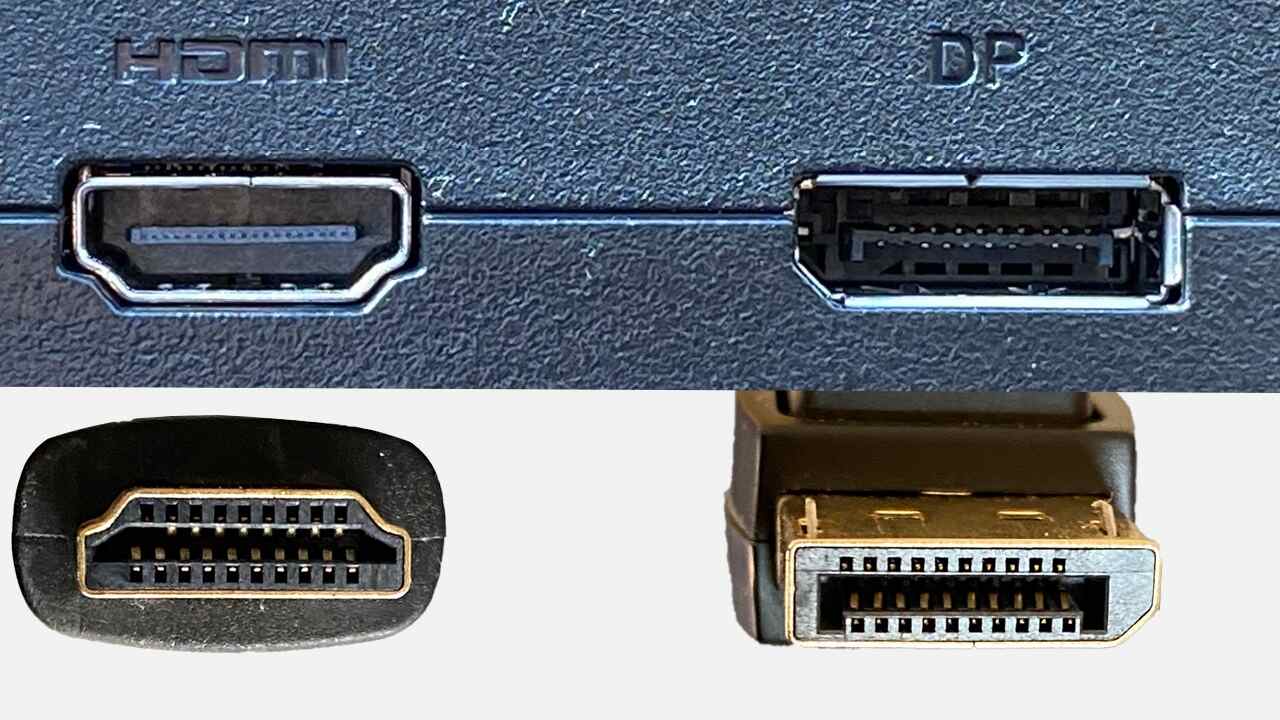
When comparing HDMI and DisplayPort, one main physical feature is their respective connectors’ designs. In general, HDMI connectors are wider with a flat, rectangular shape. DisplayPort connectors are narrower, more square-shaped, and feature a latch mechanism.
- HDMI Connectors: Type A HDMI connector, the most common one, has 19 pins while its rarer Type B counterpart has 29 pins. HDMI connectors are designed with plug and play style that does not have a locking mechanism.
- DisplayPort Connectors: Standard DisplayPort connectors have 20 pins featuring a locking mechanism making sure that they are securely connected. Mini DisplayPort connectors are usually found on laptop computers but have similar pin counts in terms of size.
Versions & Bandwidth
HDMI and DisplayPort have been updated with more features and bandwidth. For example, HDMI 2.1 has 48 Gbps and 8K at 60Hz or 4K at 120Hz. DisplayPort 2.0 allows you to connect multiple monitors into a single output via Multi-Stream Transport (MST).
Supported Resolutions
DisplayPort is superior to HDMI when it comes to ultra-HD support and refresh rate thanks to its larger bandwidth. This is good for gaming monitors where higher refresh rates are important.
- HDMI: HDMI 2.1: 8K @ 60Hz max. resolution; HDMI 2.0: 4K @ 60Hz max. resolution. There are older versions that support less than these limits.
- DisplayPort: 16K maximum resolution with DisplayPort 2.0 @ 60Hz; 8K maximum resolution with DisplayPort 1.4 @ 60 Hz respectively.
Key Features
Both have many features but different use cases. Therefore, their choice may depend on specific applications:
- Multi-Stream Transport (MST): Supported by DisplayPort. One monitor’s display port enables linking two or more monitors together by daisy chaining them. This option does not exist in any version of an HDMI cable.
- Variable Refresh Rate (VRR): On one hand, both ports enable VRRs. It synchronizes content frame rates to a monitor’s refresh rate so that tearing or stuttering in video games is degrading quality.
- Daisy Chaining: DisplayPort can accommodate daisy chaining of multi-monitor setups via a single DisplayPort output. Multi-monitor setups built on HDMI demand several outputs or a splitter, as it doesn’t support daisy chaining at all.

HDMI 1.4 vs DisplayPort 1.2
While these are older versions of these interfaces, many devices still use them frequently, so it is essential to know their capabilities when using legacy hardware.
- HDMI 1.4: Has a maximum resolution of 4K@30Hz and other features such as 3D video and ARC are supported by most old consumer electronics.
- DisplayPort 1.2: It supports a maximum resolution of 4K@60Hz and the introduction of MST made it a common choice among the first multifunctional peripherals for multiple displays.
Bandwidth, Resolution, and Refresh Rates
A direct relationship exists between the bandwidth of an interface and its capacity to support high resolution and refresh rates. Hence, for high-performance setups, generally, DisplayPort is better than other options due to its higher bandwidth.
- HDMI: HDMI 2.1 has less bandwidth than DisplayPort but can do 8K @ 60Hz or 4K @ 120Hz whereas HDMI 2.0 is only good for 4K @ 60Hz.
- Because HDMI has less bandwidth than DisplayPort it can be a bottleneck in some high-end applications.
- DisplayPort: Note that DisplayPort 2.0 has 80 Gbps bandwidth and can do 10K @ 240Hz and 16K @ 60Hz. For multi-monitor setups and ultra-high-resolution monitors, this is the way to go.
Compatibility with Graphics Cards
When picking between HDMI and DisplayPort, graphics card compatibility should be considered as well. Even though most modern graphics cards can support both types of connections, they usually prefer using DisplayPort mainly because it’s faster in terms of speed compared to others.

- NVIDIA and AMD: In general, both NVIDIA and AMD graphics cards come equipped with HDMI as well as DP output ports. This makes DisplayPort the recommended option by most gamers when performing similar activities since it has higher bandwidth due to advanced technology like G-sync or Free sync feature it supports.
- Intel Integrated Graphics: Intel’s integrated graphics solutions also support HDMI alongside Display Port, although at a more limited capacity.
Tabular Head-to-Head
Here’s a tabular representation comparing HDMI 1.2 and DisplayPort 1.4:
When to Use DisplayPort Over HDMI?
Applications that involve multiple high-resolution displays call for a DisplayPort. The Multi-Stream Transport (MST) feature on DisplayPort allows you to daisy chain multiple monitors into one source for a cleaner setup. For professionals and gamers, DisplayPort’s higher bandwidth means smooth performance and sharp images. So whether for work or play, quality and reliability matter.
Situations That Call for DisplayPort:
- Multiple Monitors: With multiple monitors, wiring can be a mess. This is where DisplayPort’s Multi-Stream Transport (MST) comes into play. MST allows you to daisy chain multi-monitor setup to one output.

- High Refresh Rates: With future updates, DisplayPort may be able to achieve higher refresh rates for gaming up to 240 Hz at lower resolutions. HDMI might need more tech to do it.
- High-resolution Screens: DisplayPort’s high bandwidth support gives you buttery-smooth visuals without losing color depth or sacrificing refresh rates.
- Professional Use: DisplayPort is preferred by professionals like graphic designers and video editors because it has more resolution support and color accuracy and can manage multiple high-quality monitors at the same time.
When is HDMI More Suitable than DisplayPort?
- Consumer Electronics: HDMI is found in home appliances like gaming consoles, TVs, and sound systems. It’s preferred by home entertainment systems because of its ease of use and cross-platform compatibility.

- Audio/Video Equipment: The audio return channel (ARC) and its improved version (eARC) which allows TVs and audio devices to connect without sacrificing sound quality makes HDMI better in AV settings.
- Older Technology: You’re more likely to find an HDMI cable that works with multiple devices like old game consoles or DVD players if you’re working with older tech.
Which should you use for gaming consoles?
It is important to highlight that currently, most of today’s gaming consoles like PlayStation 5 and Xbox Series X come with HDMI 2.1 instead of DisplayPort as their display links.
Key Considerations
- Resolution and Refresh Rate: Most modern consoles can handle 4K at 120Hz or 8K at 60Hz with HDMI 2.1. DisplayPort 2.0 has not been fully implemented in modern gaming systems yet despite having higher bandwidth. It is advisable to use HDMI 2.1 for console players.
- Bonus Features: HDMI’s VRR and ALLM ensure that even graphics-intensive games run smoothly. HDMI 2.1 is required for modern consoles because these features are needed for competitive gaming.
DisplayPort vs HDMI: Which is Better for PC Monitor?
Do I Need a Special Cable to Support 4K?
When it comes to choosing cables, it is important to know that both HDMI and DisplayPort support 4K resolutions:
- For HDMI: A Premium High-Speed HDMI cable is necessary if you want to achieve 4K resolution at 60Hz with HDR. If higher refresh rates or 8K resolution are your goals, you need an Ultra1 High-Speed HDMI cable.
- For DisplayPort: Most display port cables are certified for 4K at 60Hz or more but for best results especially at very high resolutions or refresh rates it’s recommended to use DisplayPort 1.4 or 2.0 certified ones.
Can I Use HDMI and DisplayPort at the same time?
Depending on your setup you can have HDMI and DisplayPort running at the same time:
- Dual monitors: With a dual monitor setup one monitor can use HDMI and the other DisplayPort. This is common in workstations.
- Graphics processors’ outputs: Modern graphics cards have multiple output ports including HDMI and DisplayPort so you can connect different monitors.
- Adapters and converters: If a monitor only accepts one input type use adapters to connect HDMI and DisplayPort, minimizing quality loss and complications.
Conclusion
Since both HDMI and DisplayPort have been around, they have made their own spaces in the market. HDMI is still king of consumer electronics and home entertainment because of its availability and features designed for audio-visual setup. DisplayPort is used by pros and gamers who need higher resolutions, faster refresh rates and the ability to daisy chain multiple monitors.
When choosing between HDMI and DisplayPort, think about how you will use it:
- Home Entertainment: When connecting devices like TVs, soundbars or consoles, HDMI will do the trick.
- Gaming or Professional Usage: If you have high-end systems with more bandwidth and support for higher refresh rates then DisplayPort is the way to go.

